Get Microsoft Ads setup, tools and coupon for
  free!
free! 


As we announced several times at the end of last year, we have updated the billing system in the BlueWinston. As a result of this change, it is necessary to set up your payment method again directly in your account to ensure everything works properly and payments are processed smoothly.
We have already prepared a detailed guide on how to set up payment by CARD, which you can view HERE.
In this article, however, we will look at how to proceed if you wish to choose BANK TRANSFER as your payment method.
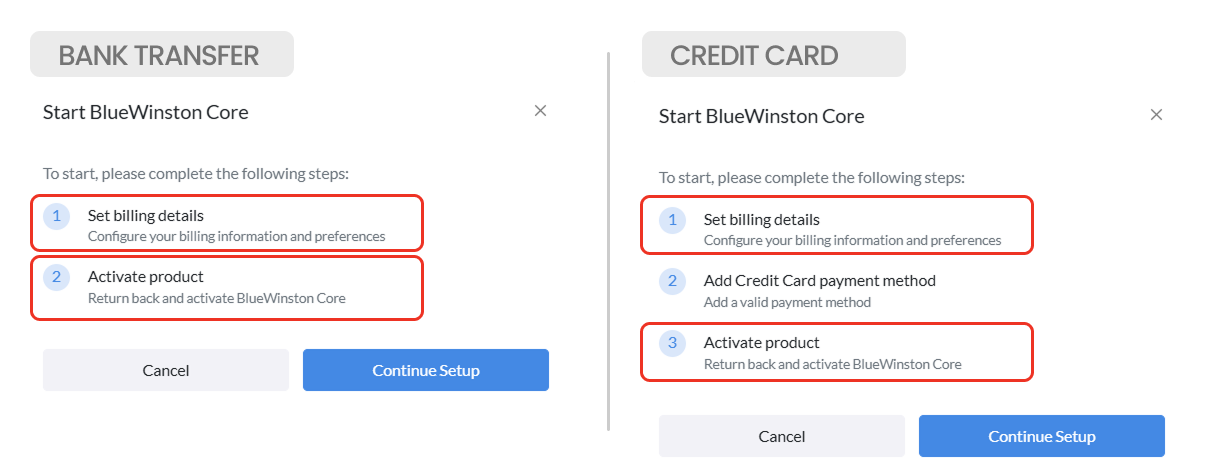
The process for setting up billing details is very similar for both methods and is essentially identical up to step 5, where you save all basic billing information. This means that regardless of whether you want to pay by card or bank transfer, the first five steps are exactly the same:
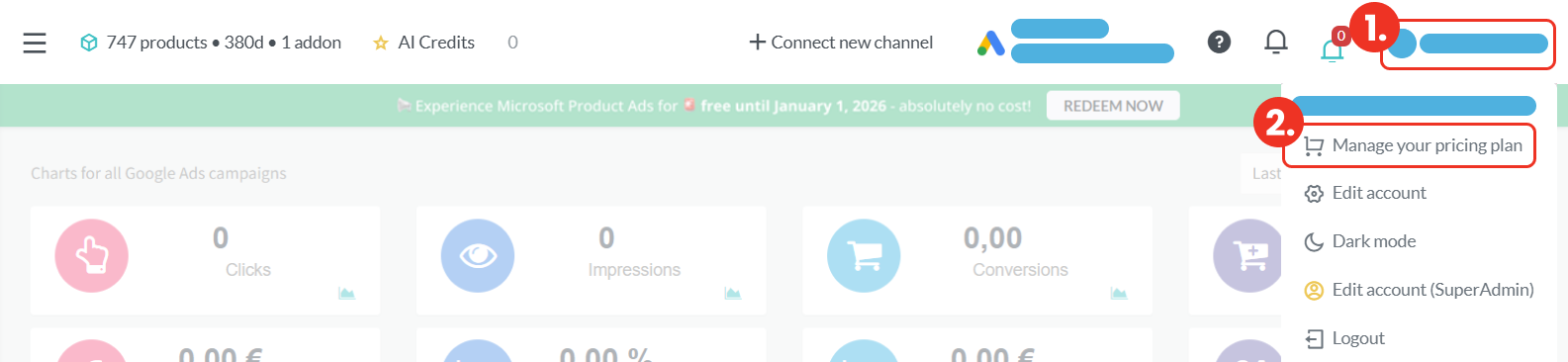
After logging into the BlueWinston application, you need to navigate to the billing section. You can do this by clicking on your account in the top-right corner (step 1) and then selecting “Manage your pricing plan” (step 2).
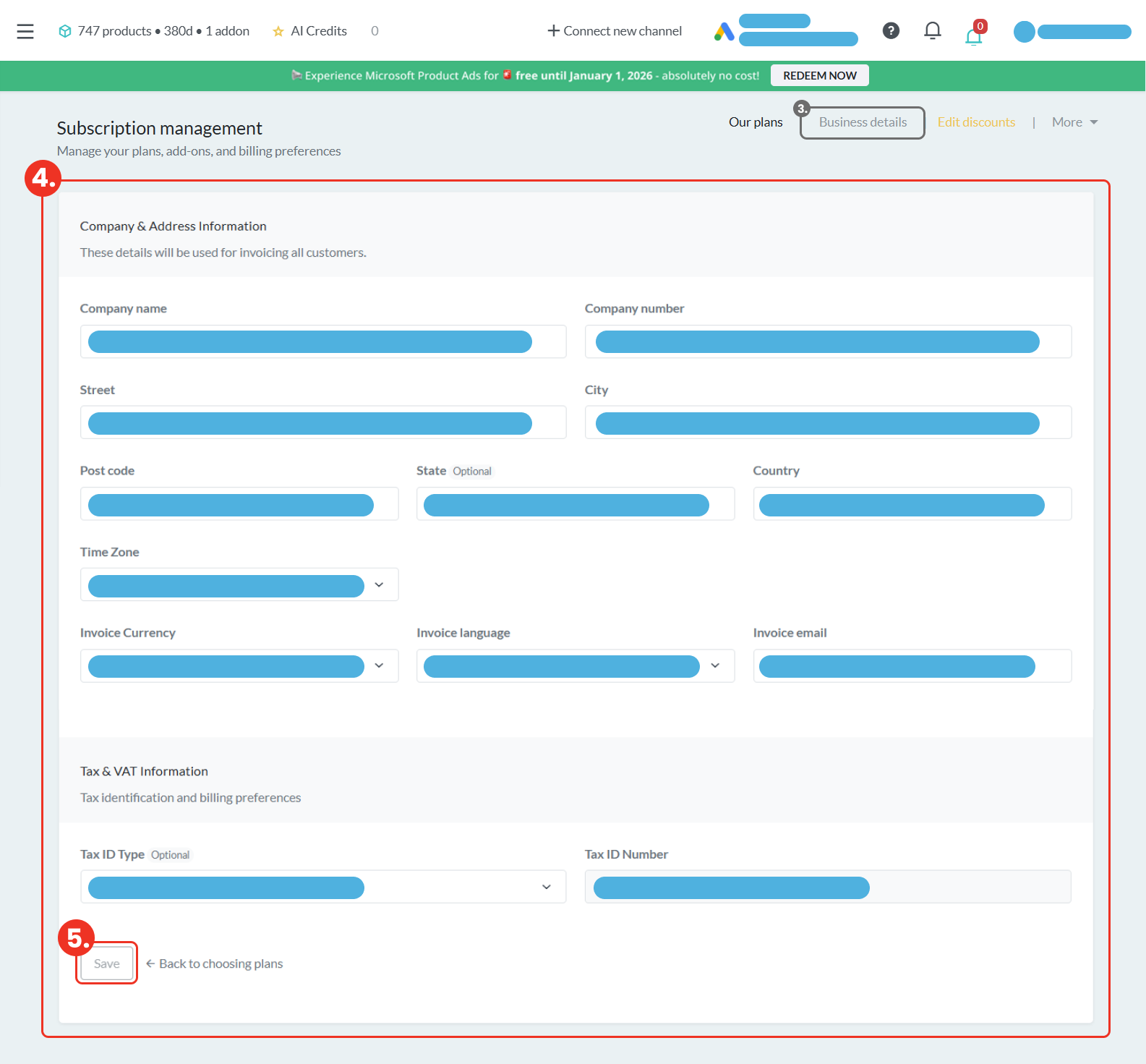
After clicking this option, you will be taken to the Subscription management section, where you should select “Business details” in the top-right area (step 3).

This will redirect you to the Company & Address Information section, where you should fill in all the required details (step 4). Once completed, make sure to save the information by clicking the “Save” button (step 5).
From this point on, the process differs depending on the selected payment method. We will now continue with the setup for BANK TRANSFER payment.
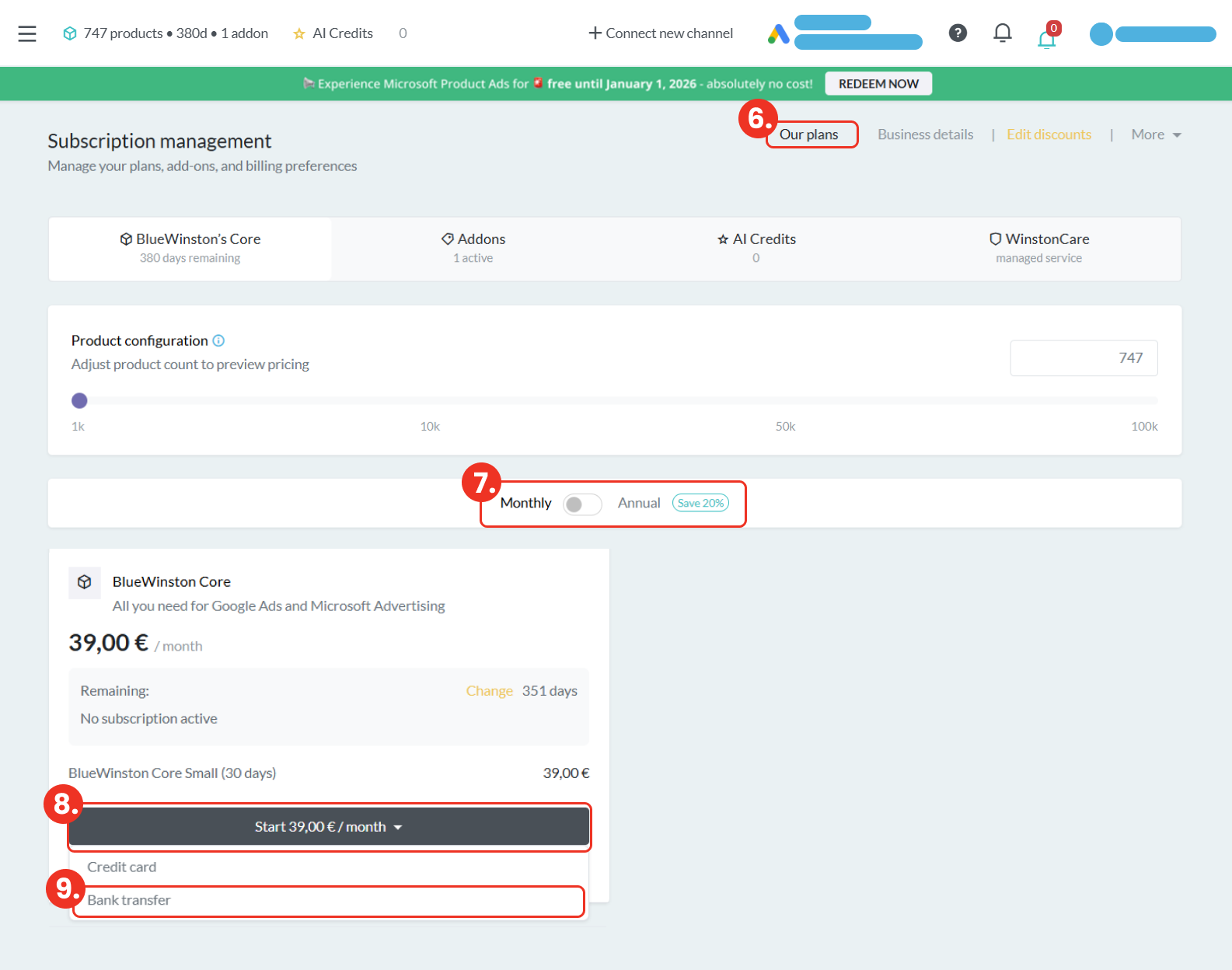
Go to the “Our plans” section (step 6), where you choose one of the payment options – monthly or yearly (step 7). After selecting your preferred plan, scroll down and click the “Start” button (step 8). There, choose the bank transfer option – “Bank transfer” (step 9).
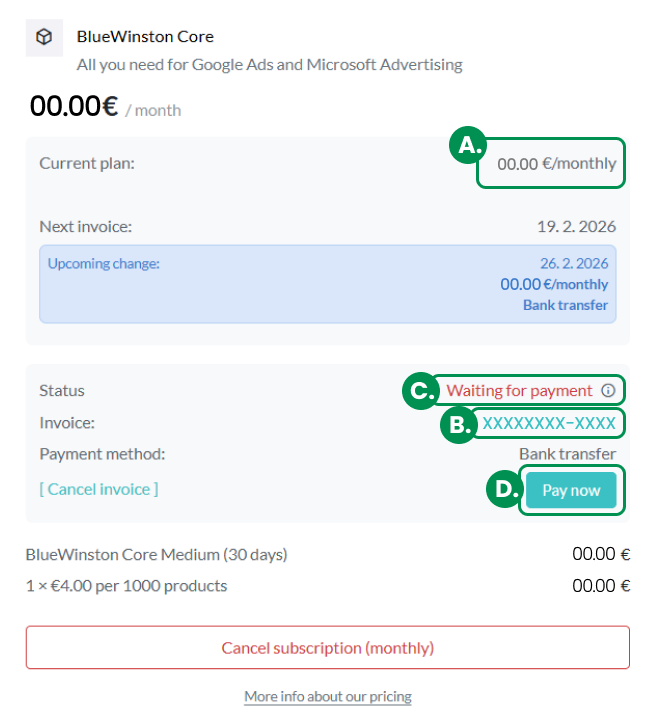
By selecting this method, BlueWinston will generate an invoice with the exact amount to be paid (point A). The invoice includes an “Invoice” code (variable symbol) (point B), which identifies your payment and ensures it is correctly matched.
You have 7 days from receiving the invoice to make the payment, and you can track the current payment status (point C) directly in your BlueWinston account. To proceed with the payment, click the “PAY NOW” button (point D), which allows you to pay the invoice online – whether you decide to pay immediately or later within the due date.
AND THAT’S IT!
*If you have chosen a monthly plan (monthly payment), please remember that the invoice must be paid every month within its due date.
Once these steps are completed, all required information will be correctly set up and BlueWinston will continue to work without any complications.
Don’t forget that if you have multiple accounts, these changes need to be made separately in each of them.
If you have any questions or encounter any issues during the setup, please do not hesitate to contact us at [email protected]. We will be happy to help you.