Get Microsoft Ads setup, tools and coupon for
  free!
free! 


Google Analytics 4 (GA4) is one of the most widely used tools for analyzing website traffic and user behavior. It helps track where visitors come from, how they behave on the site, which marketing activities bring results, and what actions lead to conversions.
If you have decided to increase the performance of your e-shop using the BlueWinston tool, we need access to your data in Google Analytics 4. This allows us to work with the analytical data needed to evaluate the performance of product ads and better optimize your marketing activities.
Read on to find out how to grant access to Google Analytics 4 step-by-step according to the current interface.
What will you need to grant Google Analytics 4 access?
Before starting, prepare:
- Access to your Google Analytics 4 account
- Your own permissions at the Administrator level
- The email address you want to grant access to
Email for granting access to BlueWinston: [email protected]
1. Log in to Google Analytics 4
Open Google Analytics 4 and log in using a Google account that has administrator permissions.
After logging in, check that you have selected the correct Analytics Property to which you want to grant access.
Google Analytics allows you to manage access at both the account level and the specific property level. If you want to grant access to only one website or e-shop, pay attention to the level at which you are setting the access.
2. Open Access Management
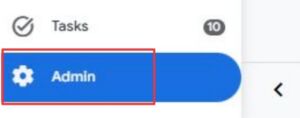
In the bottom left corner of Google Analytics 4, click on the gear icon for Admin.
A panel of options will then open, where you should look for Account Access Management. Google Analytics 4 also offers this option for a specific Property.
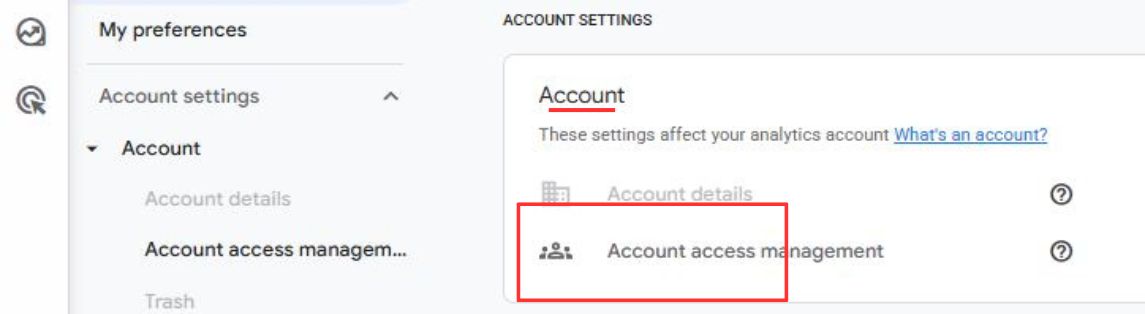
However, it is best to add a user at the account level so they have access to everything related to the web project or application.
3. Add a New User
Whether you choose access management for the entire Google Analytics 4 account or just for a specific property, the process is roughly the same.
Go to account access management and click the blue “+” button on the right side.

Next, select the option: Add users.
Add the email and don’t forget to set the permissions to “Administrator”.
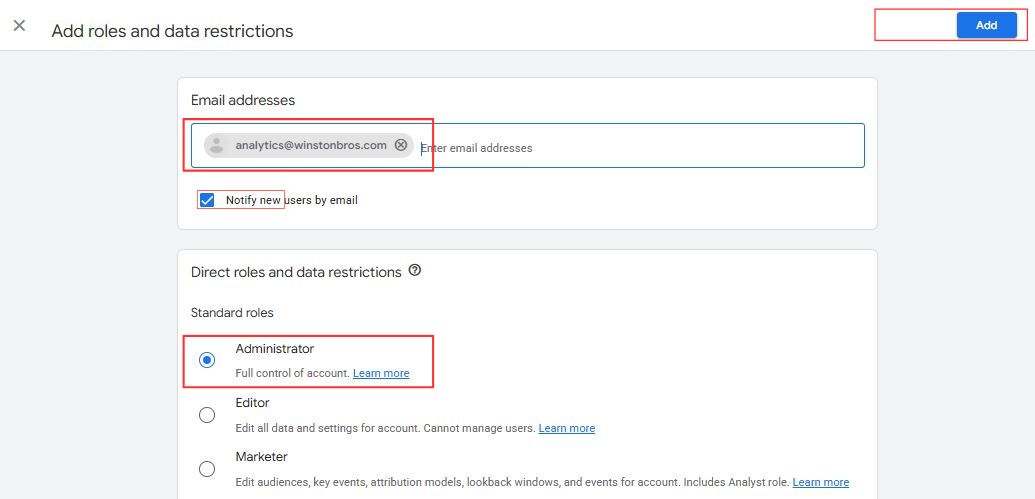
Finally, just click the blue “Add” button in the top right corner.
To ensure a notification is sent to their inbox, check Notify new users by email before sending the invitation.
Why do we need administrator access?
Since we will be using the BlueWinston tool – which includes features for product management and filtering – to promote your products, we need to connect Google Analytics 4 with the tool. This will give us access to up-to-date data on sales and product performance.
Administrator access is essential for this connection and for setting up all necessary tags.
Google Analytics 4 provides data on traffic, user behavior, traffic sources, conversions, and the performance of marketing activities. For e-shops, it also allows tracking of purchasing processes and revenue.
Access to analytical data allows us to better evaluate the results of product ads and work with data that is crucial for optimizing marketing activities.
Thus, you can use BlueWinston not only for automating product ads but also as part of a broader process for optimizing the performance of your e-shop.
Frequently Asked Questions (FAQ)
Yes. Google Analytics allows you to add any number of users and set separate permissions for each based on their role.
Do I have to grant access at the entire account level?
Not necessarily. You can manage access at the Account level or a specific Property level. If you want to share access to only one website or e-shop, you can set it directly at the respective property level.
Is it safe to grant access to Google Analytics?
Yes, as long as you use the correct email address and set an appropriate level of permissions. Google allows existing users to modify permissions later or remove a user from the account entirely.
What if I already have other users in Google Analytics?
NYou don’t need to remove them. Google Analytics allows having multiple users in an account or property with different levels of permissions.
BlueWinston for your product ads
Granting access to Google Analytics 4 takes only a few minutes. Simply open the administration, go to access management, add the email [email protected], and set the required permission level.
Correctly set access will allow us to work with your e-shop’s analytical data and better evaluate the performance of product ads, filter products, and create strategies based on product performance.
If you want to fully utilize the possibilities of automation and optimization for product ads, BlueWinston will help you streamline product ad management and work with your e-shop’s data more efficiently.
For full management of your product ads through Google Ads or Microsoft Ads, Google Merchant Center is an essential tool.
Discover how to share it with us so your product ads can run at full speed.